

Getting around Reproof
Navigating the Reproof UI
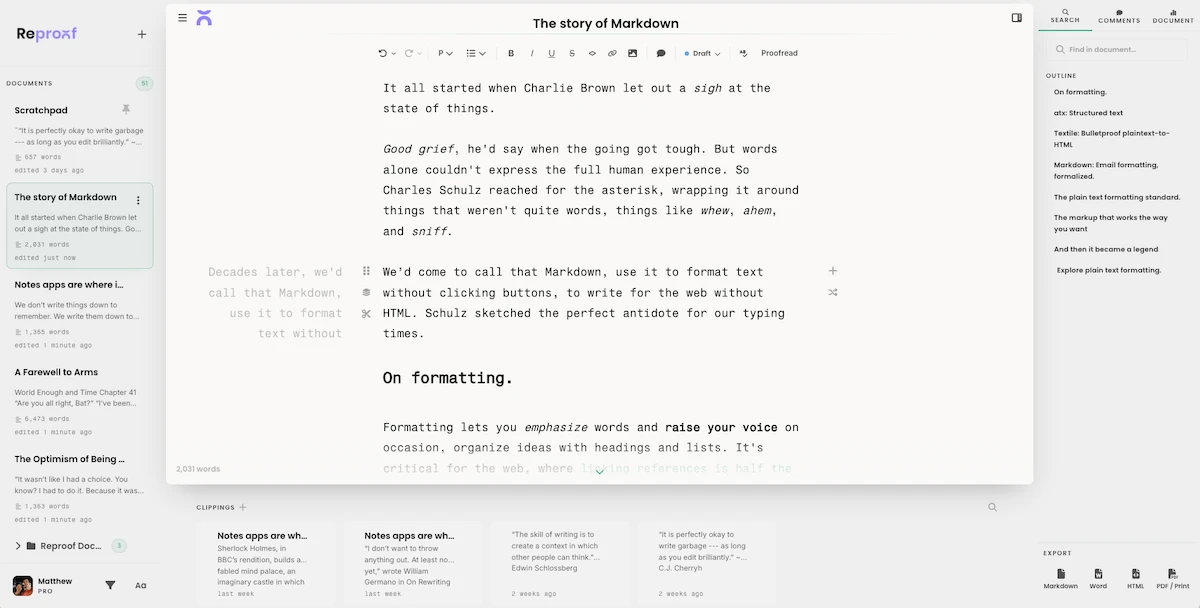
Reproof keeps your documents front-and-center, and you can keep your hands on the keyboard all the time, or navigate with your mouse—whichever you prefer.
You can see as much or as little of Reproof as you want. There’s always a document in the middle of your screen, with a list of documents in the left sidebar, tools like a document outline and find/replace in the right sidebar, and clippings underneath.
To open or close the sidebars, you can either:
- Swipe with two fingers to open or close each sidebar (you can disable this in settings, if you want)
- Click the buttons in the top corners of a document
- Press
Option+[to open or close the left sidebar andOption+]to open or close the right sidebar
To open or close the clippings pane, click the caret on the bottom of your document or press Cmd+j to open and close the pane.

The Command Palette is where you’ll find everything else. Open it by clicking the Reproof icon in the top left corner of a document or the sidebar, or press Cmd+k anytime.
Click a recent document to open it. Start typing to filter through your docs and open them from your keyboard. Or click the lower tabs to customize Reproof’s settings, check your writing stats, and see Reproof’s latest features or send in feedback.