

Finding documents in Reproof
Everything you've written, a keystroke away.
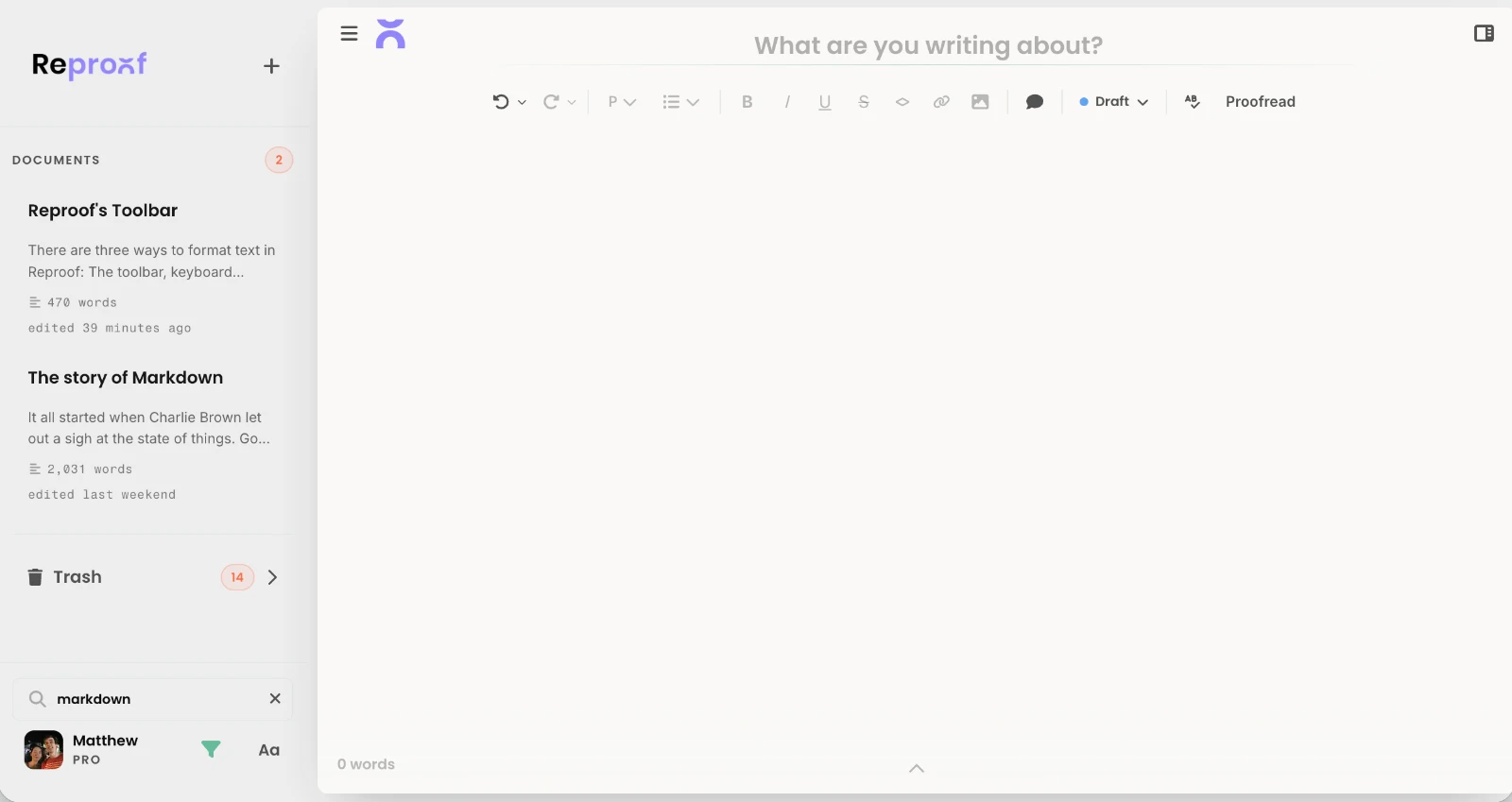
Reproof keeps every document tucked away in the left sidebar. Click to switch between documents, or hide the sidebar to focus and write.
The sidebar lists documents in reverse chronological order, sorted by when they were most recently edited, with pinned documents kept at the top of the list. You can add documents to folders by dragging-and-dropping them, or by clicking the menu option on a document and choosing to move it to a folder.
You can filter your sidebar as well to show only docs containing a specific word, by clicking the filter button in the center of the bottom of the left sidebar. Filters search through both document titles and text. And, once you've typed a filter, you can navigate the sidebar with your arrow and open a document by pressing Enter.
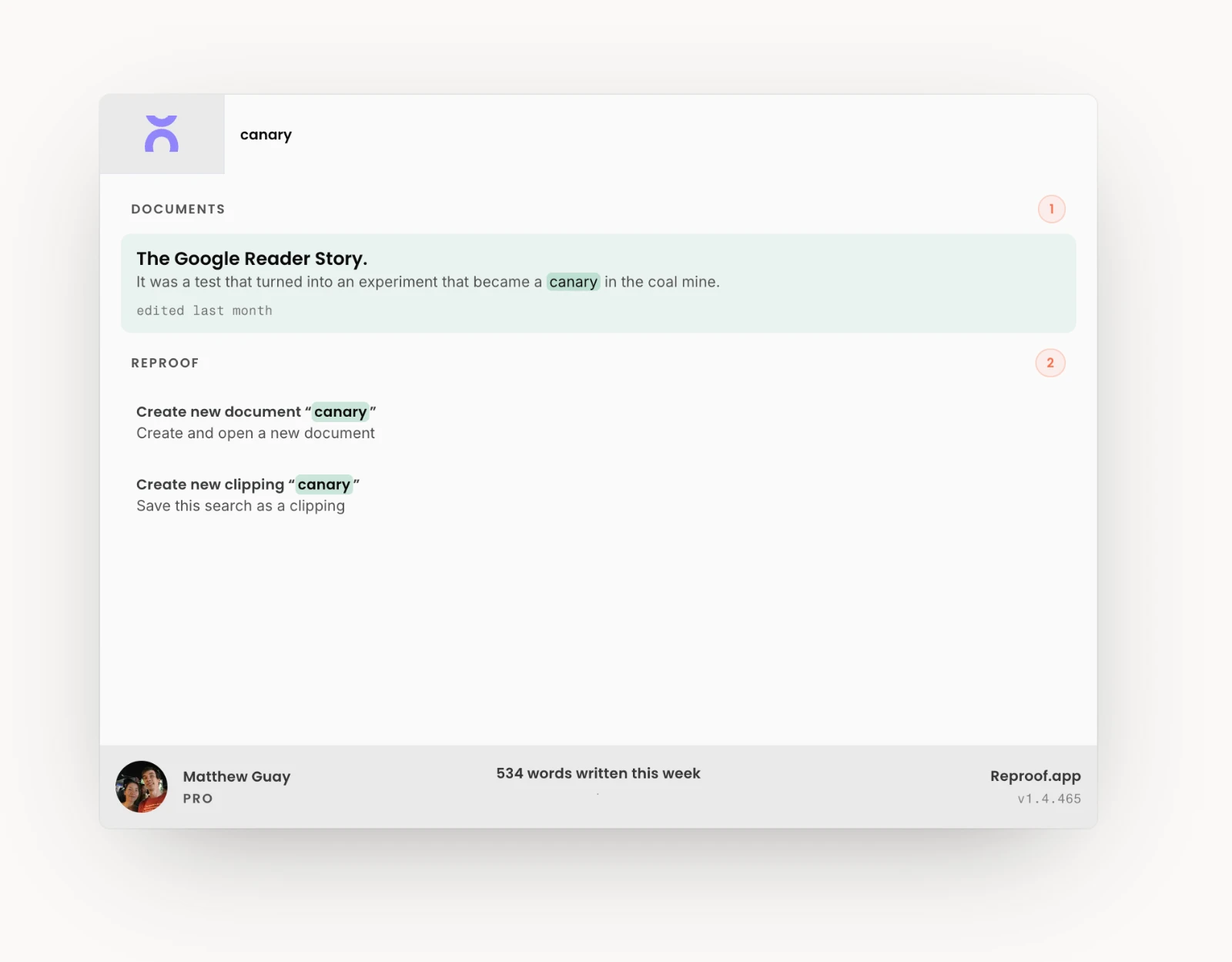
Or, you can click the Reproof icon or press Cmd+k anytime to open the Reproof command palette—and just start typing to search through your documents, press arrow keys to navigate between documents, and press enter to open the document you want. That's the fastest way to jump between documents in Reproof.
And, as a bonus, if you search for something that's not in your library, you can create a document or clipping directly from the command palette, then jump in and start editing it.