

Formatting text
Markdown or Rich Text
There are three ways to format text in Reproof: The toolbar, keyboard shortcuts, or Markdown characters.
Formatting Toolbar
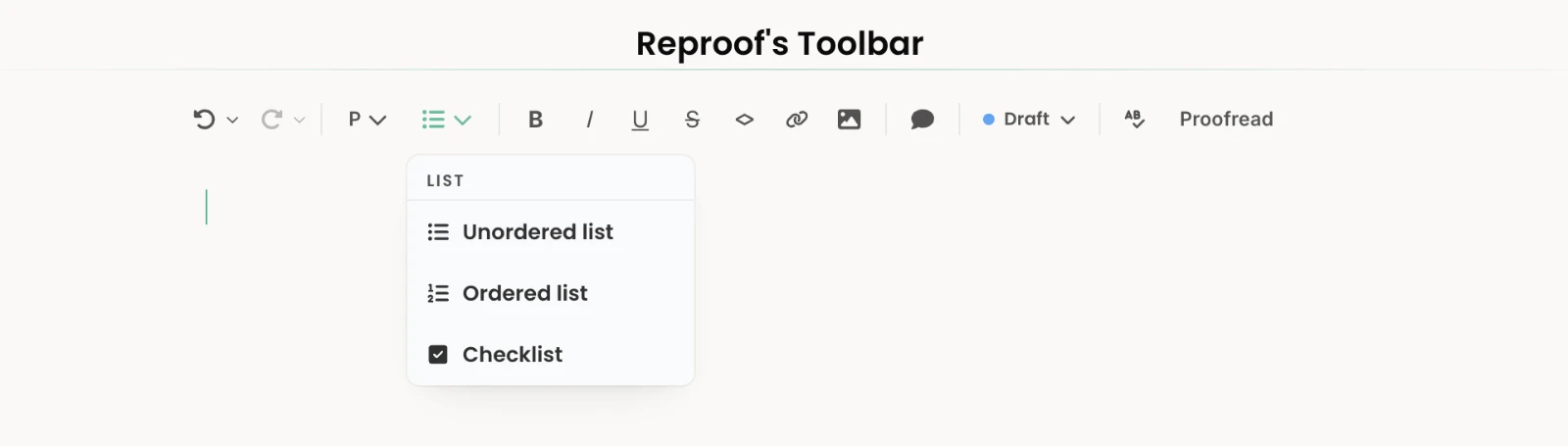
Reproof's toolbar lives at the top of every document and includes formatting tools along with undo/redo, document status, and Reproof’s proofreading tool.
To format paragraph styles and add headers, quotes, or code blocks, click into a paragraph then click the correct option from the first toolbar button that typically will say P (unless the text you click is a header, quote, or code block). Select the paragraph style you want to convert your text into that format. Or, select the list option beside it to convert a paragraph into an ordered or bullet list or a checklist.
To add bold, italics, underline, strikethrough, inline code, or links, select text then click the appropriate button to add that formatting. Click it again to remove it.
Or, to add an image, click the photo icon to add an image from a link or to upload an image into your Reproof document.
Keyboard Shortcuts
Another way to format your document is with keyboard shortcuts. While you’re writing, press standard formatting shortcuts anytime to start or stop using that formatting—or select text and press the shortcut to format the selected content.
- Bold:
Cmd+b - Italics:
Cmd+i - Underline:
Cmd+u - Strikethrough:
ctrl+shift+s - Code:
Cmd+e - Link:
Cmd+Shift+k - Heading:
Cmd+Option+1through6
And the same goes for undoing or redoing anything in Reproof:
- Undo:
Cmd+z - Redo:
Cmd+shift+z
Markdown
The fastest way to format text in Reproof is with Markdown. Add asterisks for bold or italics, hash signs for headings, and so on. In Reproof, the characters will disappear, replaced by formatting. Then whenever you want to export Markdown text, just select the text you want to copy and press Cmd+shift+c to copy it out as Markdown-formatted text.
- Bold:
*single asterisks*or_underscores_around text - Italics:
**double asterisks**or__double underscores__around text - Code:
`backticks`around text. Three backticks to start a code block. An exclamation then three backticks to start a raw code block - Headings:
#hash mark before text; one hash for H1, two for H2, and so on - Quote block:
>greater than sign before text - Lists:
-before text for an unordered list;1.before text for an ordered list - Links:
[text](link)with the linked text in square backets and the link in parenthesis - Images:
with an exclamation mark then a link to convert the link into an image.
Code Blocks
Reproof includes both a Code Block and a Raw Code option.
Code Block keeps any included text formatted as code when you copy it out in HTML or Markdown Formats, perfect for writing about code where you want to show the actual lines of code in the finished document.
Raw Code shows the text as a code block inside Reproof or in Rich Text exports, but includes the direct code when copied in Markdown or HTML formats, perfect for when you want to include rendered code, YAML text, or other raw code in a blog post or email newsletter.